
On this page
A lot of the time on a typed assignment can go on the mouse: hunting through menus and retyping what you deleted by accident. In a 2005 study in the International Journal of Human-Computer Interaction, a questionnaire of 251 experienced Microsoft Word users found they rarely used efficient keyboard shortcuts, favouring icon toolbars instead (Lane, Napier, Peres and Sándor, 2005). A second experiment in the same paper, with six participants, confirmed that keyboard shortcuts were the most efficient way to give common commands. Below are the shortcuts that matter for schoolwork, from the official help pages.
Which text editing shortcuts save the most time?
These come from Microsoft's list of Windows keyboard shortcuts. On a Mac, Apple's shortcut guide uses Command where Windows uses Ctrl.
Ctrl+Z undoes your last change; Ctrl+Y redoes it (Mac: Command-Z and Shift-Command-Z).
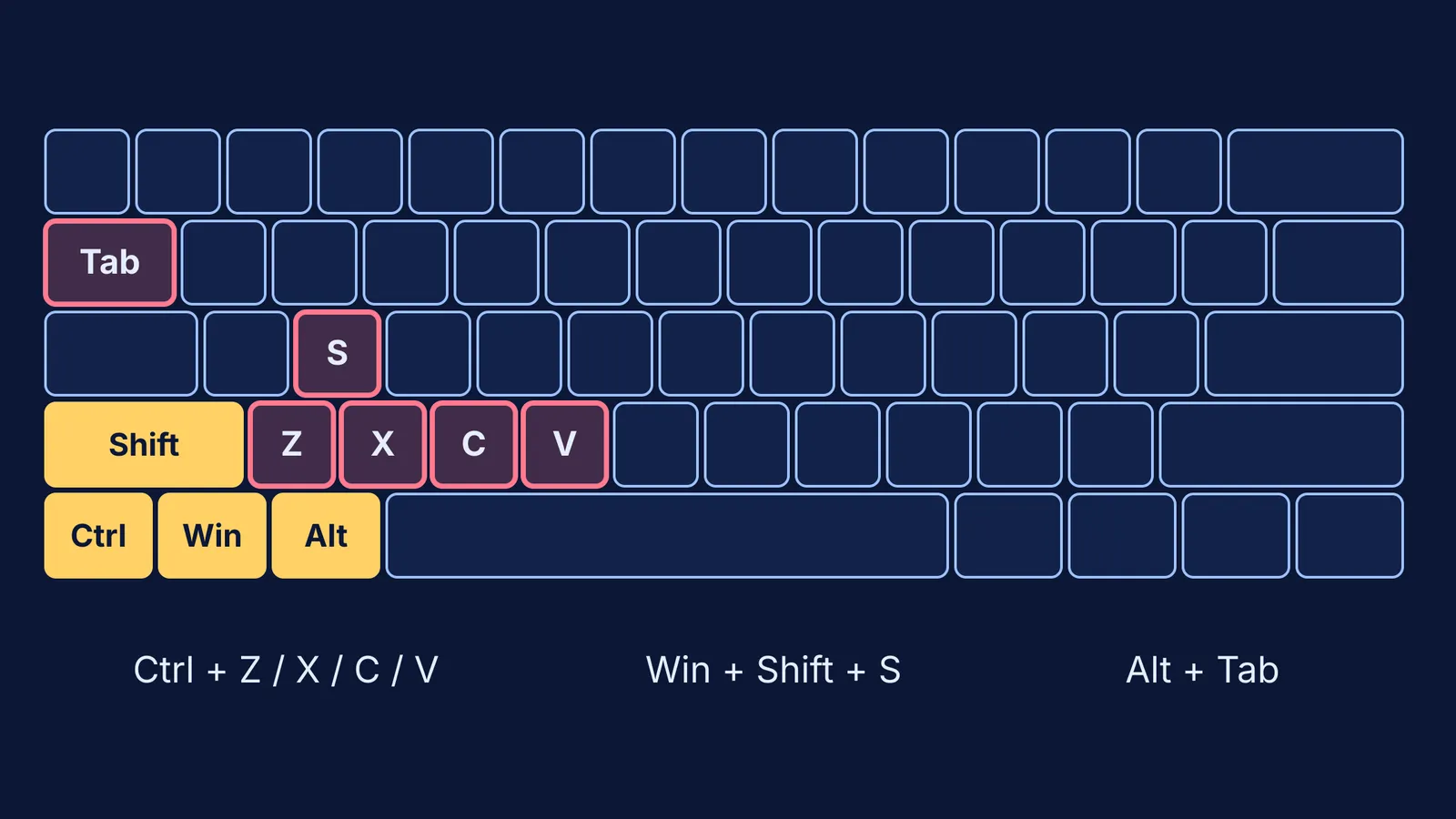
Ctrl+C, Ctrl+X and Ctrl+V copy, cut and paste.
Ctrl+A selects all the text.
Ctrl+Backspace deletes the whole word to the left of the cursor (Mac: Option-Delete).
Ctrl+Left and Ctrl+Right jump the cursor a word at a time (Mac: Option with the arrow keys).
Ctrl+F finds a word anywhere in the document.
Which Google Docs shortcuts help with science write-ups?
From the full list of Google Docs shortcuts, these help most with practical files (on a Mac, Command replaces Ctrl and Option replaces Alt):
Ctrl+. for superscript (cm³, x²) and Ctrl+, for subscript (H₂O, CO₂).
Ctrl+Alt+1 to Ctrl+Alt+6 for headings, so your Aim, Method and Result stand out.
Ctrl+Shift+7 for a numbered list and Ctrl+Shift+8 for bullets.
Ctrl+H to find and replace (Mac: Command-Shift-H), and Ctrl+Shift+C for the word count.
Ctrl+/ shows every shortcut.
Microsoft Word uses different keys for some of these, so check its Help menu if you write in Word.
How do you take a screenshot on a laptop?
On Windows, Win+Shift+S lets you select a region of the screen to capture, according to Microsoft's shortcut list. The capture goes to the clipboard, so you can paste it straight into your document with Ctrl+V.
On a Mac, Apple's screenshot guide lists three options. Shift-Command-3 captures the whole screen, Shift-Command-4 lets you drag to capture part of it, and Shift-Command-5 opens the Screenshot app with a timer and other options. Screenshots save to the desktop by default. Add Control (for example, Control-Shift-Command-4) to copy the screenshot to the clipboard instead.
If your folders are already full of screenshots of notes, try a weekly sort for screenshot hoarding.
Which window shortcuts help when you research and write at once?
From Microsoft's list and Apple's guide:
Alt+Tab switches between open windows (Mac: Command-Tab switches apps).
Win+Left or Win+Right snaps a window to one side of the screen, so the PDF and your draft sit side by side.
Win+V opens clipboard history, so you can paste something you copied a few steps ago.
Win+L locks the computer, which is useful on a shared family laptop.
On a Mac, Command-Space opens Spotlight search to find a file, and Control-Command-F puts an app in full screen.
If finding the right file is the real slowdown, here is how to organise study files on your phone and laptop.
A worked example: one physics practical file
Say you are writing up a Class 11 experiment in Google Docs on Windows:
Open the practical sheet and your document. Press Win+Left on one and Win+Right on the other.
Type "Aim" and press Ctrl+Alt+1. Use Ctrl+Alt+2 for each subheading.
Type the units for acceleration as m s−2, select the "−2" and press Ctrl+. to raise it.
Press Win+Shift+S, drag around your graph, then switch back with Alt+Tab and press Ctrl+V.
Press Ctrl+H to find each "speed" and change it to "velocity" where your teacher asked for it.
Press Ctrl+Shift+C to check the word limit before you submit.
None of those steps needs a menu.
How do you make shortcuts a habit?
In the Lane study, experienced users had not moved from icons to shortcuts on their own, and the authors suggest giving people a roadmap for the switch. So learn them on purpose.
Start with the commands you use most: undo, paste and screenshot.
When you do use a menu, read the key combination printed beside the command, and use it next time.
Shortcuts pay off most when your fingers already rest on the keys. Here is a two-week plan to learn touch typing.
Shortcuts speed up the typing, not the thinking. If a question in the assignment is what has you stuck, you can bring the scanned assignment to Fermi's AI tutor, which works out what you already know, builds a plan for the session and teaches through it. For a single numerical, the Fermi Problem Library has a step-by-step solver that explains the reasoning rather than printing an answer.
Pick your first three shortcuts tonight, before your next assignment.