
On this page
To build your first app you need a browser, a phone and an afternoon, not paid software or a coding course. MIT App Inventor is "a free, visual programming environment" hosted by a research lab in MIT's Computer Science and Artificial Intelligence Laboratory. The same page says it began in 2007 as a project of educators and researchers at MIT and Google, and lists 30 million learners in 200 countries and regions.
Below, a small unit converter explains two ideas most apps depend on: events and variables.
What do you need to make an app as a school student?
A computer with a web browser, to open App Inventor and start a project.
A phone with the MIT App Inventor Companion app, which the official Wi-Fi setup guide says runs on Android and iOS devices.
Both on the same Wi-Fi network. In the browser, choose Connect, then AI Companion, and scan the QR code with the Companion.
Once connected, the app on your phone updates as you change your design and blocks, which the guide calls "live testing".
How do you build a unit converter in App Inventor?
A converter is small enough to finish and big enough to teach the real ideas. In the Designer, drag in three components, as described in the user interface reference:
A TextBox for the number. Set NumbersOnly to true, so the keyboard accepts only numbers.
A Button with the text Convert.
A Label for the answer. A Label's Text property is the text it shows.
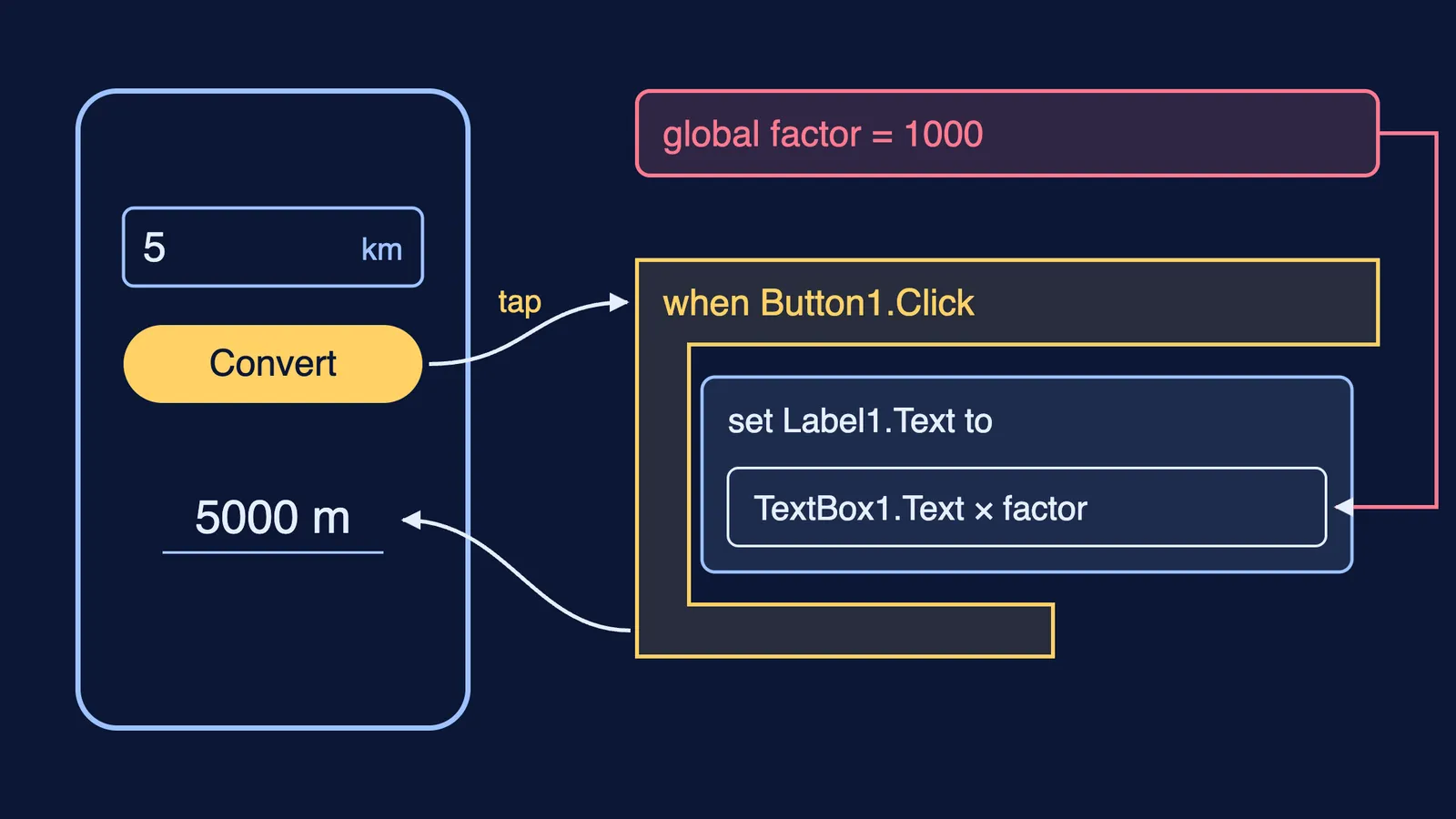
Then open Blocks and build this:
initialize global factor to 1000
when Button1.Click do: if is number? TextBox1.Text
then: set Label1.Text to join (TextBox1.Text × get global factor) and " m"
else: set Label1.Text to "Type a number first"
Type 5 on your phone, tap Convert, and the label shows 5000 m.
What does the converter teach about events and variables?
An event is something that happens to the app, and an event handler is the set of blocks that runs when it does. The component reference says the Button's Click event indicates that the user tapped and released the button. Your app does not run top to bottom like a simple Class 11 Python script. It waits until a tap arrives. Phone apps generally work this way: a message arrives or a timer ends, and a handler runs.
A variable is a named value that your blocks can read and change. The variables reference says a global variable can be referred to and changed from any part of the app, even while the app is running. A local variable, by contrast, is used only inside the block that creates it.
Two extensions make both ideas stick:
Reuse the variable. Add a second button, m to km, that divides by get global factor. Both handlers read one value, so changing factor to 100 and relabelling gives a metre-to-centimetre converter in one edit.
Remember between taps. Add a global variable count set to 0, and inside the Convert handler set it to count + 1 and show it. The count survives between taps because it lives outside the handler. This is state: what an app remembers between events.
Then try square units. One square kilometre is 1000 × 1000, or 1,000,000 square metres, not 1000. If your app is wrong here, the bug is in the maths, not the blocks. When the reasoning behind units is the shaky part, the Fermi Concept Library has its own lesson for every concept in physics, chemistry, biology, mathematics and computing, so you can fix the idea first.
Why does my App Inventor app not work?
Four common first-app bugs:
The phone does not update. The setup guide says live testing needs both devices on the same Wi-Fi network.
Tapping does nothing. Your blocks sit in when Button2.Click but you tapped Button1. Check the name on the event block.
A block does nothing. It is loose on the workspace. Apart from blocks like initialize global, most blocks run only when they sit inside an event handler or a procedure it calls.
The app fails on an empty box. Add the is number? check, which the math blocks reference says returns true only for a number.
When stuck, read each block aloud and say what it does; this five-step debugging routine for beginners walks through the habit.
What should you build next?
A weekend plan:
Saturday morning: build the converter and test it on your phone.
Saturday afternoon: add the second button and the tap counter.
Sunday morning: build one you would use, such as price per kilogram to price per gram at the vegetable market.
Sunday evening: write three lines on what you changed and why, and add it with screenshots to your portfolio of school projects.
App Inventor's about page says the same blocks scale up to apps that use AI, sensors, maps and data. After the converter, try these simple AI project ideas for Class 9 and 10.