
On this page
In short Mastering the terminal is a core skill for students, as the 2024 Stack Overflow Developer Survey found that 27.7% of developers use Ubuntu Linux for personal projects. By focusing on a small set of commands for navigating folders and editing files, and practising them with spaced repetition, you can build fluency quickly.
If you plan to study computer science, data science or bioinformatics, you will spend a lot of time in the terminal. Instead of clicking through folders in a Graphical User Interface (GUI), you type text commands to tell the computer what to do.
This text-based interface might feel intimidating at first, but it allows you to automate tasks and run programs on remote servers where no mouse is available. Once you learn the basics, navigating your files becomes much faster.
Why is the Linux command line important for students?
In the software industry and university research labs, Linux is the standard. Whether you are running a machine learning model, deploying a web application, or analysing a large dataset, the work usually happens on a Linux server. According to the 2024 Stack Overflow Developer Survey, 27.7% of developers rely on Ubuntu Linux for their personal work.
Understanding the terminal early gives you a significant advantage in college. It makes it easier to write scripts, manage your project files, and eventually build a GitHub profile as a student without relying entirely on visual tools that hide how things actually work.
Do I need to memorise every Linux command?
No. The Linux environment has hundreds of commands, each with dozens of optional flags, but you only need a handful to get started.
A landmark 1988 study by Saul Greenberg and Ian Witten on how users repeat their actions on computers found that 75% of command lines entered by a user are exact repetitions of previous ones. This means that a tiny vocabulary of commands covers almost all your daily work.
Which Linux commands should I learn first?
Start with the commands that let you move around your computer and manage your files. Open your terminal app (Terminal on macOS, or Windows Subsystem for Linux on Windows) and try these:
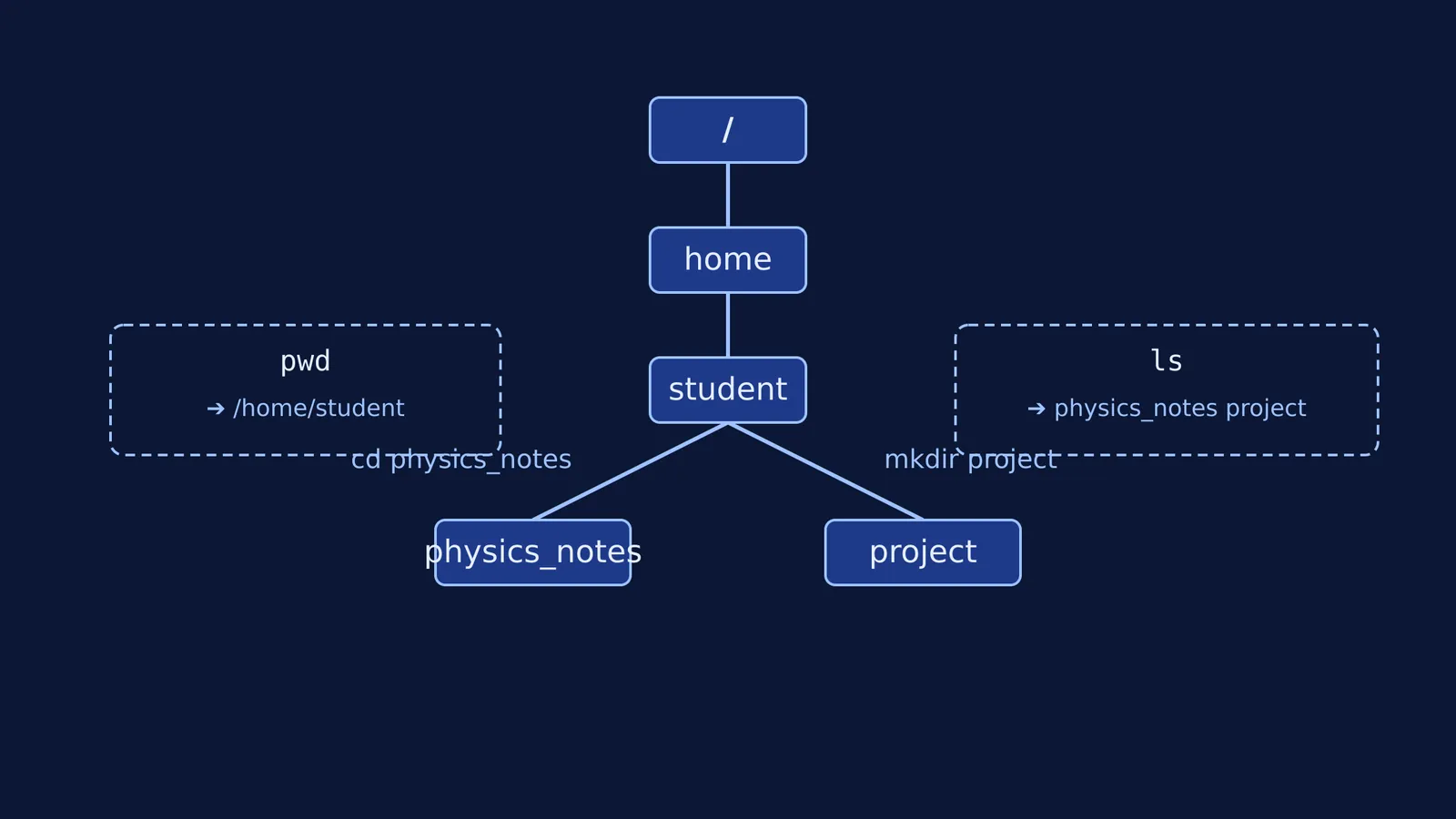
pwd: Print working directory. This tells you exactly which folder you are currently in.
ls: List directory contents. It shows you all the files and folders inside your current location. Using `ls -a` will also show hidden files.
cd: Change directory. If you type `cd Documents`, you will move into the Documents folder. Typing `cd ..` takes you one step back.
mkdir: Make directory. Type `mkdir physics_notes` to create a new folder with that name.
nano: A simple text editor that runs entirely inside the terminal. You can use it to write code or notes without opening a separate app.
cat: Concatenate and print. Typing `cat notes.txt` will print the contents of that file directly to your screen.
How can I remember Linux commands without cramming?
The biggest mistake students make is trying to memorise a list of commands the night before a lab exam. Because the syntax is strict, you will quickly forget the exact flags and spacing.
Instead, use active recall and spaced repetition. A 2019 study published in *PNAS* showed that using an algorithm to schedule spaced repetition helps learners memorise items far more effectively than traditional heuristic schedules. Tools like Anki use these algorithms to test you on a concept just as you are about to forget it.
Set up a daily practice routine with a few flashcards. Use "cloze deletion" (fill-in-the-blank) to test your syntax in context:
To see which folder I am currently in, type: `[pwd]`
To move up one folder, type: `cd [..]`
To list all files including hidden ones, type: `ls [-a]`
To create a folder called 'project', type: `[mkdir] project`
Practising these for a few minutes each day will build the muscle memory you need to navigate the terminal effortlessly.
What should I do when I get stuck on an error?
Sometimes, you will type a command perfectly but the terminal will return a cryptic error message like `Permission denied` or `No such file or directory`.
When you get stuck on a shell error, Fermi's AI tutor works out what you already know and builds a plan for the session, teaching you the concepts behind the error rather than just printing the fixed command. This approach helps you understand file permissions and paths so you can fix the issue yourself next time.
Once you are comfortable with these basics, you can start running your own code from the command line, whether you are building a simple game or running data analysis for the basic statistics every student science project needs.