
On this page
How do you set up Google Family Link on Android?
Setting up parental controls on an Android smartphone uses Google Family Link, connecting a parent's Google account to a child's supervised profile within a Google family group. If your child is under 13, you can create their supervised account during setup; if they already have an account, you can attach supervision directly.
Follow these steps to pair the devices:
Download the Google Family Link app on your personal phone (Android or iOS).
Open the app, sign in to your Google Account, and tap the option to add a child.
On your child's phone (running Android 7.0 or higher), open Settings > Google > Parental controls (or Digital Wellbeing & parental controls).
Tap Get started, select Child or teen, and choose your child's Google account.
Enter your parent password to authorize supervision, review permissions, and confirm pairing.
Once linked, the phone applies restrictions across Google Play, Chrome, and YouTube under Google's screen time controls.
How do app approvals, screen time, and location tracking work?
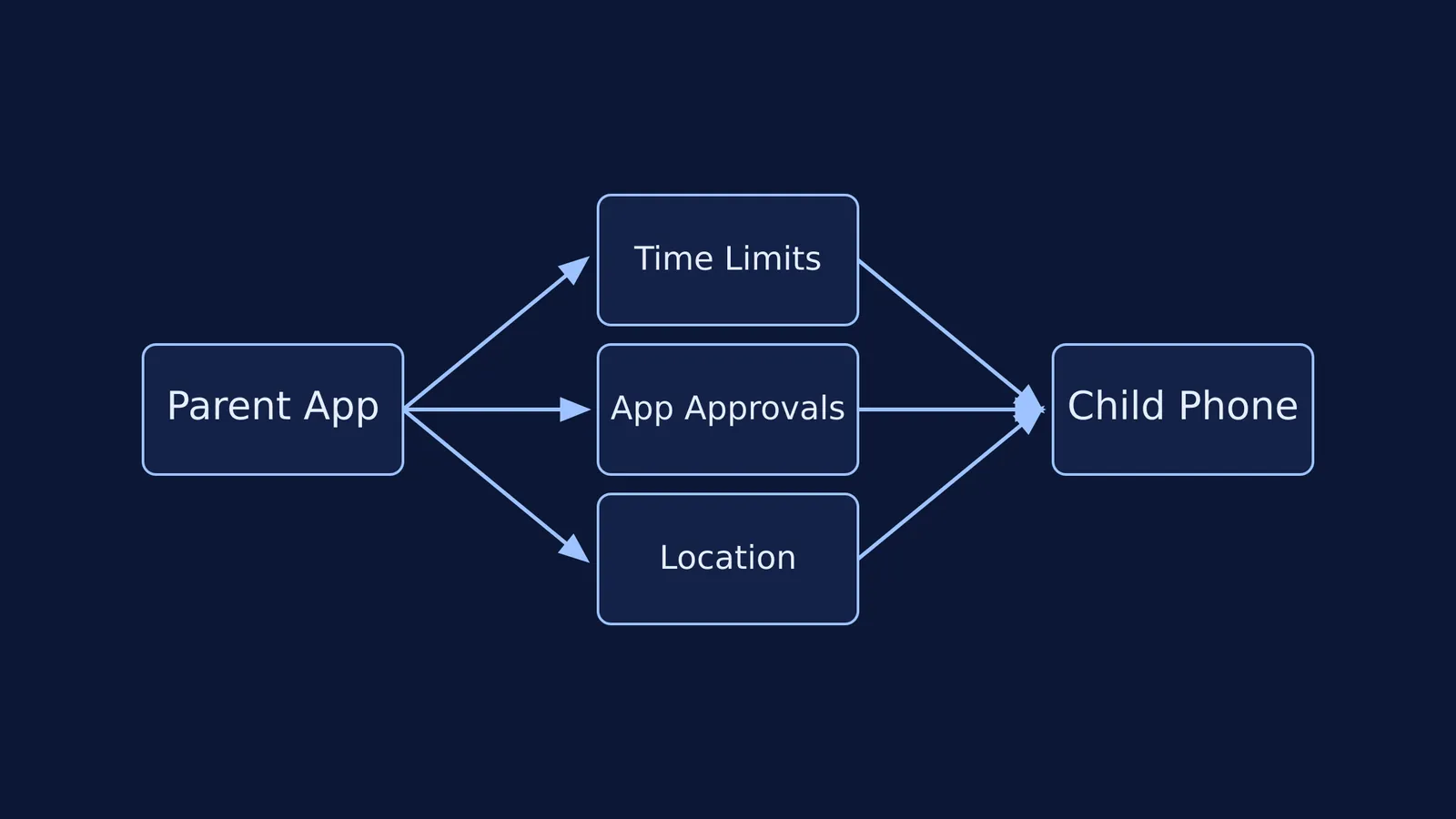
Google Family Link manages device use through three primary features: daily time limits, app installation approvals, and location tracking.
First, screen time rules let you set a daily usage allowance in hours and minutes for each day under Google's screen time documentation. When time runs out, the phone locks automatically. You can also configure a bedtime window—such as 10:00 PM to 6:30 AM—to lock the device overnight. Parents can add single-day "Bonus time" without changing the permanent schedule.
Second, app controls manage what software enters the phone. Under Google Play purchase approvals, you can require permission for "All content", "Paid content only", or "In-app purchases only". When your child requests an app, you receive an instant notification to approve or deny it. You can also set per-app timers, block distracting apps, or designate study tools as "Always Allowed". If your child uses digital study tools, adding them to the Always Allowed list ensures study sessions continue; for instance, the Fermi Problem Library offers worked problems with a step-by-step solver that explains the reasoning rather than printing an answer. Families setting home study boundaries can consult our guide on family rules for screen time during homework.
Third, location tracking shows where your child is when traveling between school and home. The Family Link Location tab displays the phone's current or last known GPS position and its battery level. You can also set "Family places" to receive alerts when they arrive at or leave school.
What are the technical limits and bypasses parents should know?
Parental controls provide structure, but software has clear functional limits.
Family Link does not monitor private communications: it cannot read SMS or WhatsApp messages, view photos, or record calls. Furthermore, location tracking stops updating if the phone is switched off, enters airplane mode, or loses mobile data. Adolescents may also encounter unblocked websites if browsing on secondary devices or unmanaged browsers. Even with the screen locked, research shows how smartphones impair focus when sitting on a study desk.
A key regulatory boundary occurs at age 13. In India, the minimum age to manage a standard personal Google Account is 13 under Google account rules. At age 13, Google invites the child to manage their own account, as explained in Google Family Link graduation guidance. If a teenager stops supervision unilaterally from their device, Google emails the parent immediately and locks the phone for 24 hours unless a parent enters their override code.
How can families balance software controls with trust?
Controls work best when paired with open conversation rather than covert monitoring.
Research demonstrates that technical filters alone cannot ensure digital safety. A 2017 study in *The Journal of Pediatrics* by Przybylski and Nash, studying 1,030 British adolescents aged 12–15, found that household internet filtering had no reliable link to reducing adolescents' encounters with aversive online content. Additionally, an analysis of 75 safety apps presented at ACM CSCW by Wisniewski and colleagues found that 89% of safety features focused on parental restriction, while only 11% supported adolescent self-regulation.
Fostering long-term self-discipline relies on autonomy-supportive parenting practices. Use this plan before enabling controls:
Explain the rationale: Position bedtime locks as protection for sleep and focus, not a lack of trust.
Agree on app categories: Decide together which tools are "Always Allowed" (study apps, family calls) and which have daily limits (social media, games).
Schedule monthly check-ins: Review screen habits monthly, relaxing restrictions as your teen demonstrates consistent balance.
Pairing Family Link's operational guardrails with transparent family agreements helps teenagers build digital independence while keeping necessary safety nets in place.