
On this page
A spreadsheet remembers every test score, counts every mistake and draws the trend you would otherwise guess at. A few formulas, careful sorting and the right chart cover most of what a school project or an exam-prep log needs.
If you take CBSE's Information Technology skill subject, spreadsheets are part of the syllabus too. The Class 10 Information Technology (402) curriculum for 2026-27 gives its Electronic Spreadsheet (Advanced) unit 15 theory hours and 23 practical hours, taught in LibreOffice Calc.
Which Excel formulas should every student learn?
All of these also work in Google Sheets, whose official function list includes SUM, AVERAGE, COUNTIF, AVERAGEIF, IF and XLOOKUP.
SUM and AVERAGE give totals and means: =AVERAGE(E2:E7) is your mean score across six tests.
COUNTIF counts "the number of cells that meet a criterion" (Microsoft's COUNTIF page), so =COUNTIF(K2:K40,"Calculation") counts your calculation slips.
AVERAGEIF adds a condition: =AVERAGEIF(B2:B40,"Physics",E2:E40) averages only your physics rows.
IF makes "logical comparisons between a value and what you expect" (Microsoft's IF page): =IF(E2>=$H$1,"On track","Revise") labels each test against a target.
The $ sign keeps a reference like $H$1 fixed when you copy a formula down, and F4 cycles through the reference types (Microsoft on absolute references). Without it, the target cell slides down with the formula and every row after the first is wrong.
XLOOKUP finds a match in one range and returns the corresponding item from another; it works in Microsoft 365, Excel 2021 and Excel 2024, but not Excel 2016 or 2019 (Microsoft's XLOOKUP page). On an older school computer, use Google Sheets for this one.
How do you sort data without breaking it?
Microsoft's guide to sorting data lets you sort by up to 64 columns using Add Level, for example subject first, then date. It also warns that sorting a range within a range "disassociates the sorted range from its original data", that hidden rows do not move during a sort, and that numbers stored as text sort differently from real numbers.
So keep one heading row, one row per test or entry, and no blank rows or merged cells inside the data. Then select one cell and sort the whole block.
Which chart should you use for study data?
Microsoft's chart types page gives a simple rule:
Line chart for weekly test scores, because it is "ideal for showing trends in data at equal intervals".
Column chart for marks by subject or mistakes by type, which are "comparisons among items".
Scatter (XY) chart for lab data such as extension against load, since it suits "scientific, statistical, and engineering data".
For axis labels, units and trendlines in practical files, see our guide to spreadsheet charts for science students.
Worked example: how do you build a mock-test tracker?
Here is a tracker for six weekly physics tests, with illustrative numbers.
Make columns for Date (A), Subject (B), Marks (C) and Maximum (D). In E2 type =C2/D2, format it as a percentage and copy it down.
Type your target, 65%, in H1. In F2 type =IF(E2>=$H$1,"On track","Revise") and copy it down.
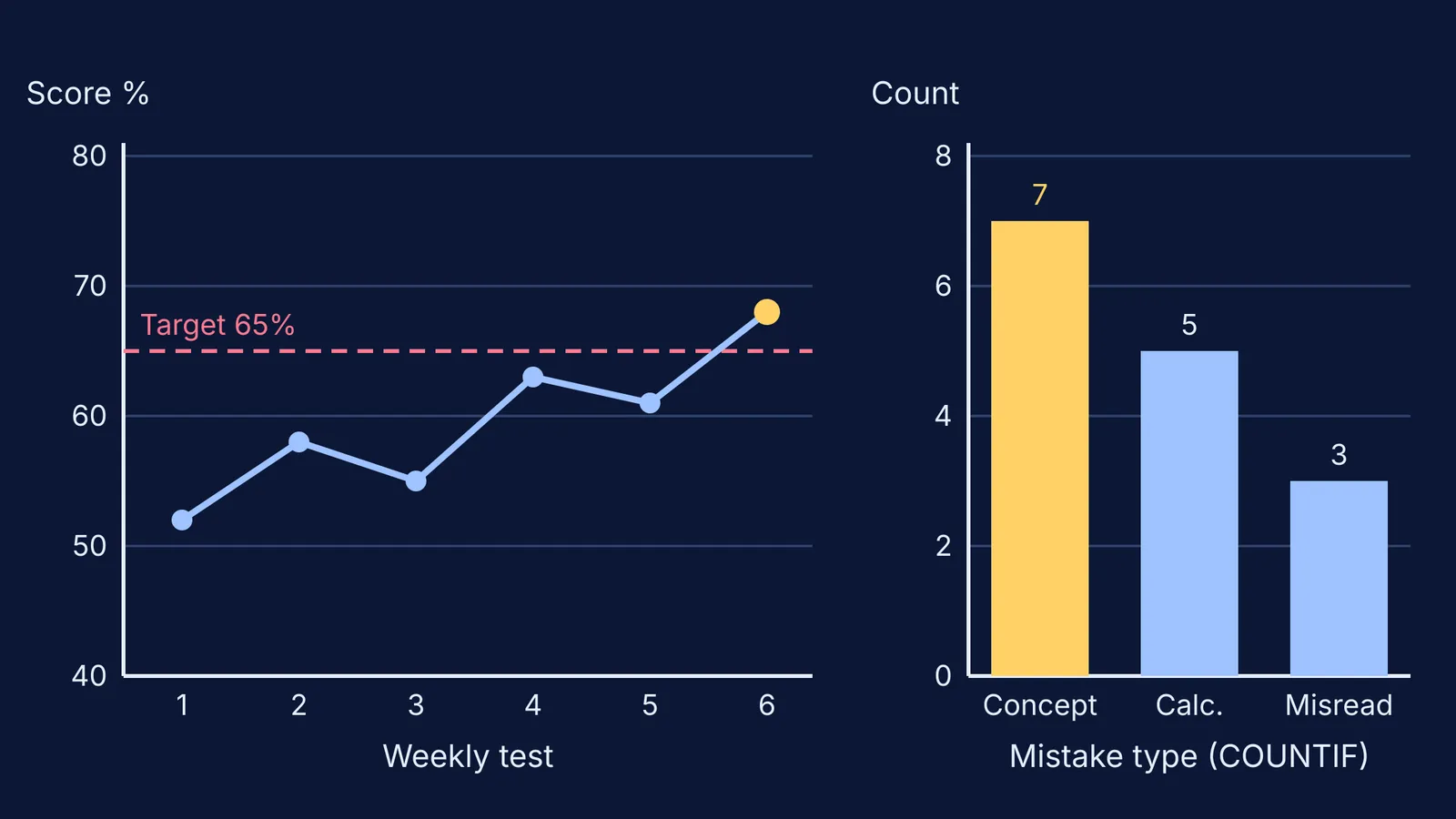
Enter the results: 52, 58, 55, 63, 61 and 68 percent. =AVERAGE(E2:E7) returns 59.5%, and only test 6 says "On track".
On a second sheet, log every wrong answer with one tag in column K: Concept, Calculation or Misread.
Count each tag with COUNTIF. Here that gives Concept 7, Calculation 5 and Misread 3. Sort the counts from largest to smallest.
Insert a line chart of column E and a column chart of the counts.
The reading is plain: scores are rising with a dip, and concept gaps are the biggest bucket, so next week goes to rereading theory, not more timed drills. Our post on how to analyse a mock test goes deeper on tagging mistakes, and the same columns work for a syllabus tracker.
When Concept keeps topping the count, the Fermi Concept Library has a lesson for every concept in physics, chemistry, biology, mathematics and computing. When Calculation does, the Fermi Problem Library has worked problems with a step-by-step solver that explains the reasoning rather than printing an answer.
Why should you check your spreadsheet formulas?
Because errors are normal, not a sign that you are careless. Raymond Panko's review of spreadsheet error research, presented in 2000, pooled lab experiments with about a thousand participants and found errors in 51% of their spreadsheets, even though most had only 25 to 50 cells. The more careful recent field audits in the same review found errors in at least 86% of the real organisational spreadsheets they checked.
Panko also describes "hardwiring": typing a number over a formula cell, which can look right today and quietly breaks the sheet for whoever uses it next. In one experiment he cites, participants' median guess at their own chance of an error was 10%, while 86% had actually made one.
Build the tracker this weekend with your last six tests, and let the counts, not your mood after one bad paper, decide what you revise next.