
On this page
At eight years old, children sit at an awkward digital crossroads. They have outgrown preschool cartoons, yet they remain vulnerable to autoplay loops, disguised advertising, and algorithmic clickbait. The Ofcom Children and Parents: Media Use and Attitudes Report 2024 found that 84% of children aged 3 to 17 use YouTube, and nearly 90% of children aged 8 to 11 use video-sharing platforms. In India and globally, primary school students increasingly turn to screens not just for entertainment, but for origami guides, school science demonstrations, and basic coding tutorials. Deciding between YouTube Kids and a supervised YouTube account depends on how independently your child browses and what they need to watch.
What does YouTube Kids actually offer an 8-year-old?
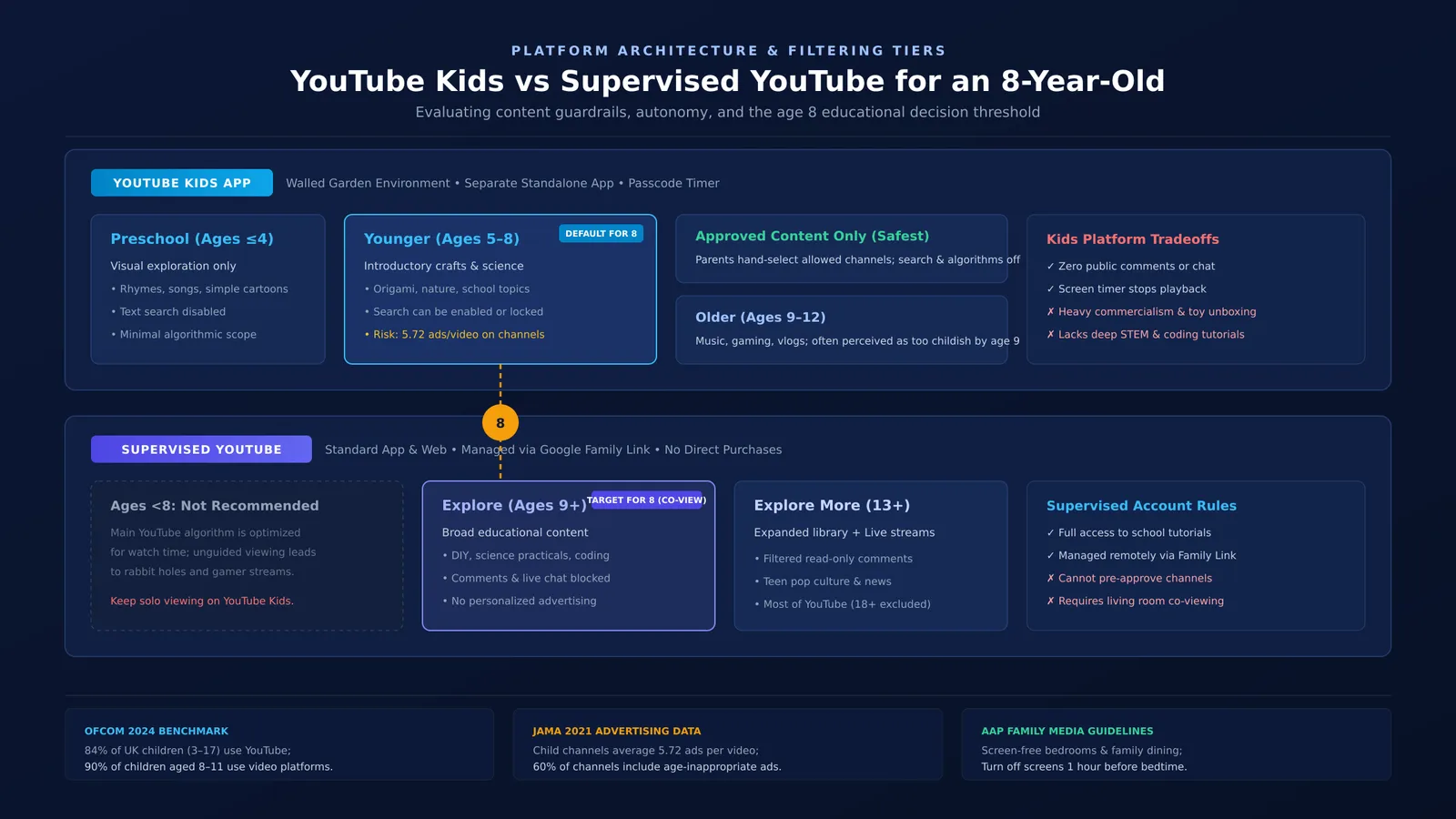
YouTube Kids operates as a standalone app with four content tiers: Preschool (ages 4 and under), Younger (ages 5 to 8), Older (ages 9 to 12), and Approved Content Only. For an eight-year-old, the Younger setting provides craft guides, cartoons, wildlife videos, and introductory science. Parents can lock settings behind a custom passcode, disable search, and set a session timer that locks the screen when time expires.
However, eight-year-olds often find the interface babyish. Furthermore, automated filters cannot catch every problematic clip, and commercialism remains intense. A study in *JAMA Network Open* by Samantha Yeo and Dr. Jenny Radesky (Yeo et al., 2021) analyzed popular child-directed YouTube channels and found an average of 5.72 ads per video, totaling 0.56 minutes of advertising for every minute of video. Age-inappropriate ads appeared across 60% of the sampled channels. Unboxing videos and influencer sponsorships often slip past filters because products are woven directly into the storyline.
For strict protection, the "Approved Content Only" mode lets parents hand-pick specific channels and videos, disabling both automated recommendations and the search bar.
How does a supervised YouTube account work?
A supervised experience runs on the standard YouTube app and website, linked to a child's Google Account managed through Google Family Link. As detailed in the YouTube Help Center, parents select from three content tiers:
Explore: Designed for viewers aged 9 and older. It includes tutorials, DIY projects, gaming, music, and educational videos, excluding age-restricted material and most live streams. Comments are disabled.
Explore More: Designed for ages 13 and older, adding live streams and read-only access to filtered comments.
Most of YouTube: Provides access to almost all videos except those marked 18+.
For an eight-year-old, only Explore is suitable. Supervised accounts block comments, live chat, video uploads, and purchases, and Google disables personalized ads. However, parents cannot pre-approve channels in advance; you can only block individual channels after they appear in your child's watch history.
When should an 8-year-old move to supervised YouTube?
Moving an eight-year-old to supervised YouTube should be driven by educational need and parental supervision, not peer pressure. If your child watches screens independently in their bedroom, keeping them on YouTube Kids in "Approved Content Only" or "Younger" mode is far safer.
Transitioning to supervised YouTube on the Explore setting makes sense when three conditions are met:
Educational need: Your child needs tutorials for school projects or hobbies that YouTube Kids lacks.
Shared viewing: Screens remain in family spaces, such as the living room, where you can watch together.
Reliable boundaries: Your child can turn off the device when agreed limits end without resistance.
When children use video platforms for schoolwork, algorithmic feeds easily distract them. The Fermi Concept Library offers an alternative: every foundational concept across physics, chemistry, biology, mathematics, and computing has its own dedicated lesson, free from algorithmic rabbit holes. For ideas that benefit from visual experimentation rather than passive videos, the Fermi Simulation Lab provides interactive simulations where students can test ideas directly.
How can families set up healthy digital viewing boundaries?
The American Academy of Pediatrics policy statement on media use (Council on Communications and Media, 2016) recommends an individualized family media plan over rigid rules, prioritizing sleep, physical activity, and social connection. Families can build one using the AAP Family Media Plan tool.
To put this into practice, establish four consistent boundaries:
Designate screen-free zones: Keep devices out of bedrooms and off the dining table. Charging tablets in common areas overnight prevents bedtime browsing.
Set a digital curfew: Turn off video streaming at least one hour before sleep.
Explain the transition clearly: Tell your child: "We are setting up a supervised profile so you can find tutorials for school, but we will watch them together in the living room."
Conduct weekly history reviews: Open Family Link together on weekends to review watch history, helping your child reflect on what was useful.
Establishing clear routines early helps children build digital discernment, whether you are setting screen time and homework rules or checking privacy in learning apps. If you want to introduce your child to active digital study tools, our guide on trying an AI tutor with your child can help turn passive scrolling into an engaging learning habit.